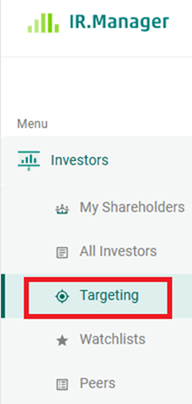
Select the Targeting category.
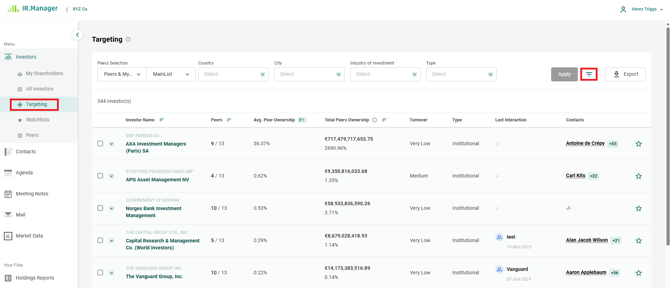
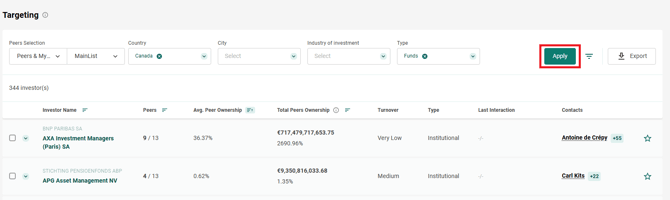
You can filter the list of investors by many criteria such as location and industry at the top of the page. More filters can be found by clicking on filter button  on the right side of the page.
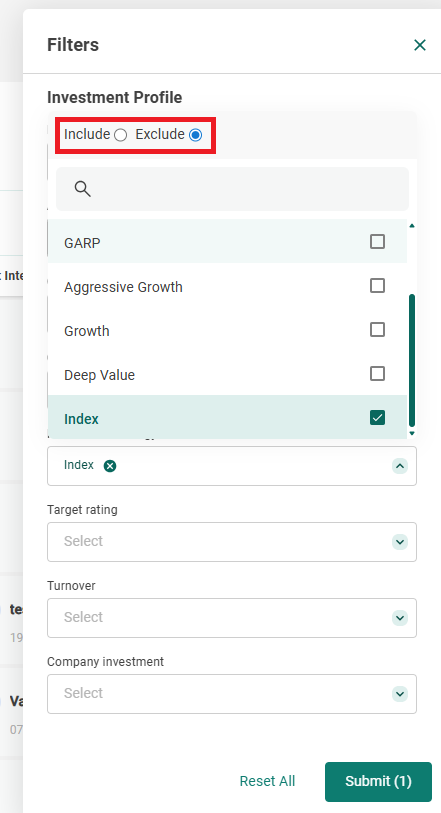
You can select several criteria within one field. In the Asset Under Management field, you can enter your own numbers, that the AUM will be greater than, less than, or between. For the Investment Strategy, you can also exclude a strategy type. Please click the Submit button to validate your filters.
Every time you change the filters reflecting at the top of the page, you must click the Apply button.
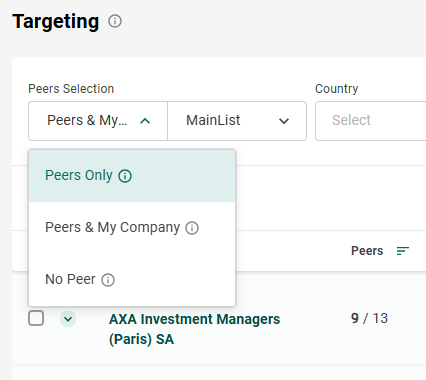
You are able to change whether you are viewing investors in your peers, investers in your peers and your company, or investors who are not invested in your peers or your company.
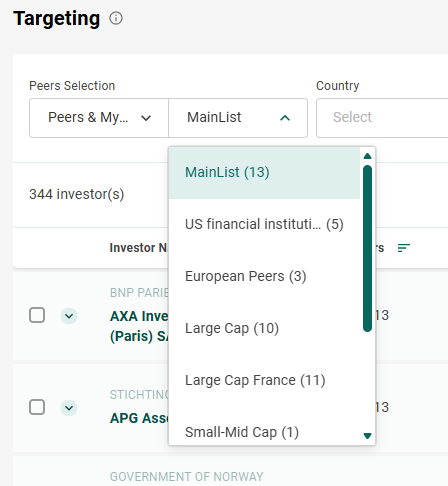
Your peers are determined by the Peer List that is selected. You can create and modify these in the Peers section.
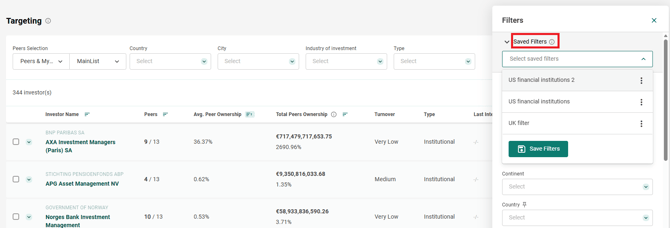
Above the extra filters, you will see an option to save filters and select those that you have saved.
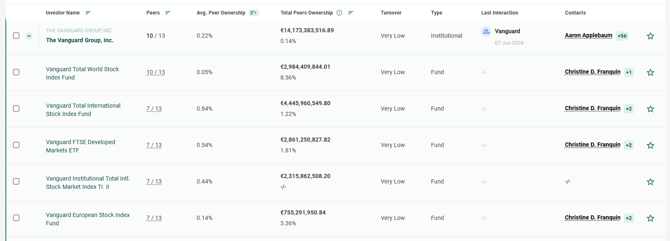
If your results include institutions, you can click the arrow to reveal their funds.
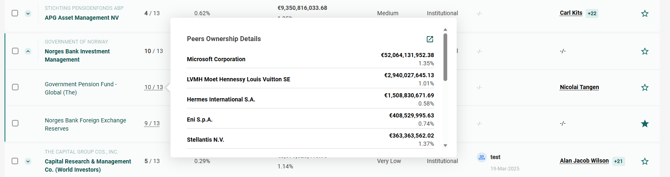
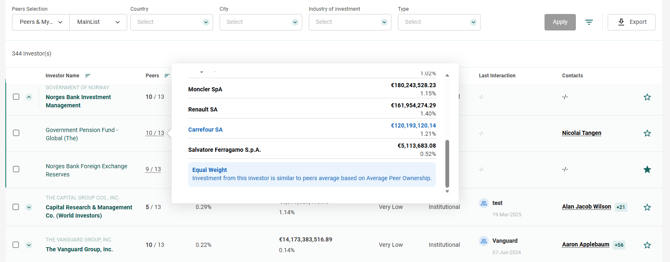
Hovering over the proportion of peers next to the name of a fund will give you Peers Ownership Details, and show you whether this investor’s holdings in your company are overweight, underweight, or equal to the average of its relative holdings in your peers.
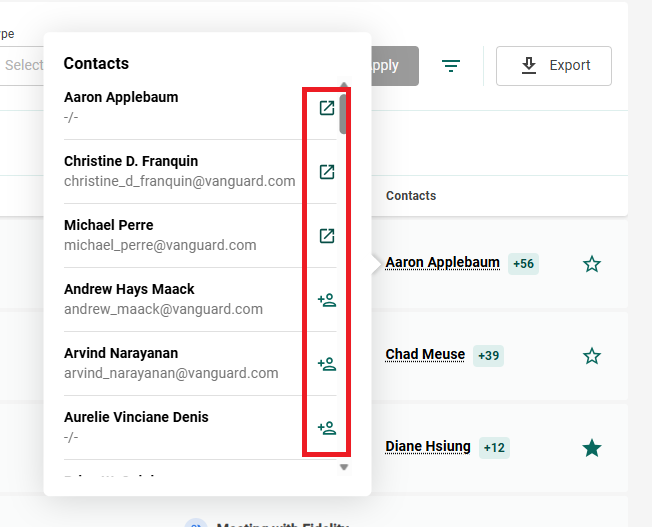
Hovering over a contact’s name with a number next to it will reveal the other contacts associated with this investor. If they have a square icon  , they are already in your contacts list, and you can view their profile by clicking on that icon. If they have the person-shaped icon
  , they are not yet in your contacts list and you can click on that icon to add them.
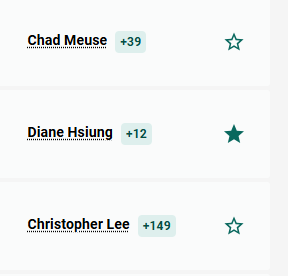
You can save an investor to a Watchlist by checking one or several boxes to the left of the investor’s name and clicking “Add To Watchlist”, or simply by clicking the star icon to the right.

Investors that are already saved to at least one Watchlist will have a dark star.
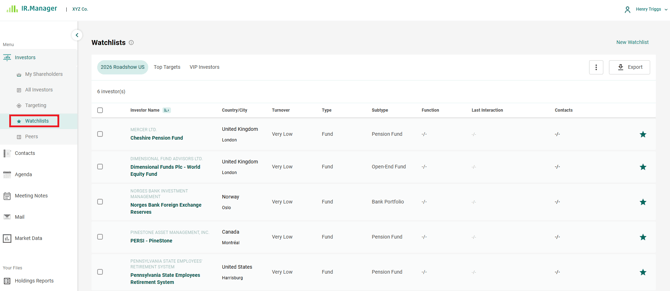
You can find your Watchlists in the so-called section, where you can also rename or delete them.